GIF Compressor.
Make room for your animation.
Reduce GIF file size, with the tradeoffs in view.
Drop your GIF here
One GIF at a time · No file uploadsUp to 30 MiB · View processing limitsOriginal
Compressed
Your result will appear here.
Settings changed. This download uses the previous settings. Compress again to update it.
Previews loop independently. They are not synchronized.
How to compress a GIF
Open your animation
Drop a GIF into the tool or choose a file. We inspect the format and show its original dimensions, file size and frame count. The file stays on your device.
Start with Balanced
Run compression once before changing everything. Inspect small text, gradients, transparent edges and motion. The two animation previews loop independently; they do not show matching frames.
Change one setting, then check
If the file is still too large, reduce dimensions or colors. Download only when both size and appearance work for you. If encoding makes it larger, keep the original.
Choose what gets smaller.
A GIF optimizer has several ways to save bytes. Each affects a different part of the animation.
| Setting | What changes | What to check |
|---|---|---|
| Balanced | Up to 128 colors; moderate lossy compression. | A practical first pass. Look for color shifts and small artifacts. |
| Smaller File | Up to 64 colors; stronger lossy compression. | Gradients and fine lettering may lose detail. |
| Better Quality | Up to 256 colors; no added lossy setting. | Palette conversion or resizing can still change pixels. The result may be larger. |
| Dimensions | Fewer pixels in every frame. | Readability at the intended display size. Keep proportions to avoid stretching. |
| Dithering | Patterns approximate colors missing from the palette. | Smoother gradients versus visible grain. File-size effects vary. |
| Frame reduction | Keep every second or third frame, combining frame delays. | Less fluid motion. Intended duration is retained; browser playback may vary. |
Try the 75% or 50% size shortcut for a quick resize. The percentage refers to width and height, not to the final file size.
Real files. Unexpected results.
These two project-created animations were processed with the actual browser engine on October 11, 2026, in Chrome 152 on macOS. They are reproducible examples, not an average compression claim. Original dimensions and every frame were retained.
01 / A flat-color sunset
Download original sunset
Three presets produced the same file size. A smaller palette did not improve this already simple illustration.
| Preset | Output bytes | Size change | Result file |
|---|---|---|---|
| Balanced | 5,689 | 22.3% smaller | Download GIF |
| Smaller File | 5,689 | 22.3% smaller | Download GIF |
| Better Quality | 5,689 | 22.3% smaller | Download GIF |
02 / An animated gradient

Download original gradient
Balanced and Smaller File produced larger files. Better Quality, with dithering off, produced the smallest of these three outputs. This result is specific to this source and these settings.
| Preset | Output bytes | Size change | Result file |
|---|---|---|---|
| Balanced | 140,681 | 32.8% larger | Download GIF |
| Smaller File | 116,420 | 9.9% larger | Download GIF |
| Better Quality | 61,128 | 42.3% smaller | Download GIF |
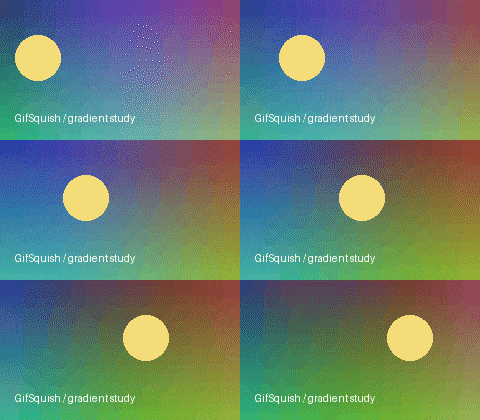
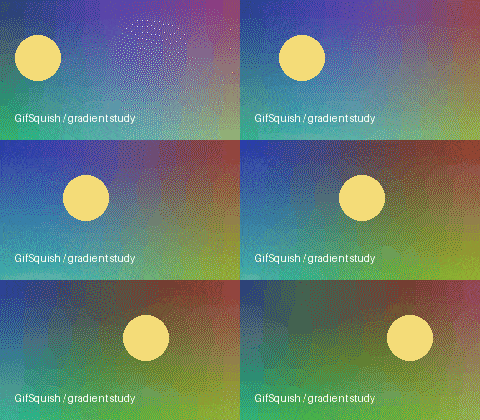
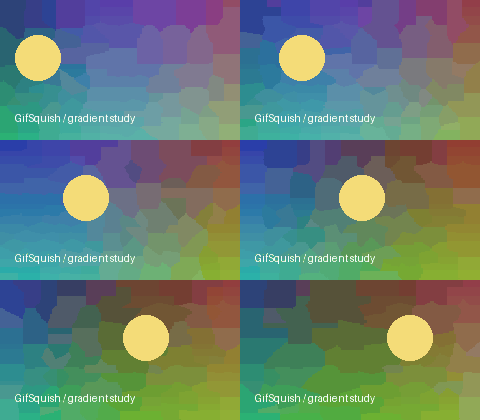
Reprocessing the 5,689-byte sunset output with Better Quality produced the same size: no improvement. We recommend keeping the original in that case.
The presets used their defaults: Balanced 128 colors / lossy 40 / dithering on; Smaller File 64 / lossy 100 / dithering on; Better Quality 256 / lossy 0 / dithering off. All frames were kept at original dimensions. Compare the downloadable results for appearance as well as bytes; smaller does not establish better quality.
Engine: gifsicle-wasm-browser 1.5.19, Gifsicle 1.92. These are synthetic illustrations, not photographic, transparent or complete browser-compatibility coverage. Sunset test metadata · Gradient test metadata · Sample license.
Know the limits.
Local processing, finite memory
The current input safeguard is 30 MiB (31,457,280 bytes), with a maximum of 4,096 pixels per side and an 80 million canvas-pixels × frames budget. Processing stops after 120 seconds. These are resource safeguards, not guarantees that every smaller file will work on every device.
GIF animations expand when decoded. A modest file can require substantial memory. If a source is rejected while loading, use a smaller source or another device; changing output settings is not available until loading succeeds.
Why a compressed GIF can be larger
Already optimized files may have little redundancy left. Palette changes, dithering and a different encoding can add bytes. GifSquish reports the actual result and keeps the original available. It processes one GIF at a time and does not promise an exact target size.
Want to understand file handling? Read our privacy details. For engine versions and licenses, see About GifSquish.
A few things worth knowing.
Can I reduce GIF size without resizing?
Yes. Keep the original dimensions and try a smaller palette or a different preset. These can alter color or detail. There is no guaranteed reduction without a tradeoff.
Is compression lossless?
Not by default. Balanced and Smaller File apply lossy compression and reduce colors. Better Quality avoids the extra lossy setting, but a changed palette or dimensions can still change the image.
Can I compress a GIF to 1 MB?
You can adjust settings and check each result against your limit. There is no automatic target-size guarantee. Keep reducing dimensions only while the result remains usable.
Do you upload my GIF?
No. Compression runs in a browser worker on your device. Visiting the site downloads code and generates ordinary hosting requests; the GIF and its filename are not uploaded.